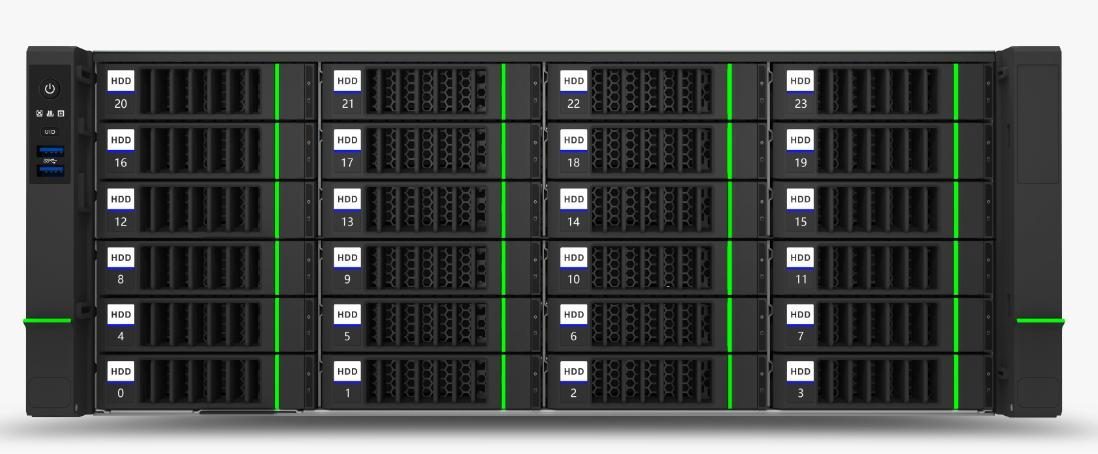
With the same 24 bays, differences in backplane protocol, connectivity topology, tool-less maintenance, and cooling design make a big difference in real-world performance. Selecting a 4U storage chassis is about more than bay count.
In storage project selection, the bay count is usually the first question asked: "How many drives can a 4U chassis hold?" The mainstream answer is 24 3.5-inch hot-swap bays, but there's a real difference between "can be installed" and "stable and easy to use." With the same 24 bays, differences in backplane bandwidth, cooling design, and maintenance methods produce noticeably different real-world performance.
A common scenario in storage projects: a customer orders to a "24-bay" spec, then finds on delivery that the backplane supports only SATA and their existing enterprise SAS drives aren't recognized; or the bay count is right, but swapping a drive requires removing the side panel and undoing screws, making every maintenance job slow. The root cause is treating bay count as the only selection metric.
This article breaks down the key points of 4U storage chassis selection one by one, to help clarify the critical questions before purchasing.
【Why the 4U Form Factor Suits Storage】
4U equals 7 inches (177.8 mm) in height, a dimension that suits storage well: stack 3.5-inch drives vertically, fit 24 bays on the front panel, and still leave ample rear space for redundant PSUs, the fan wall, and backplane cabling.
By comparison, 2U chassis typically offer 8 to 12 bays; taller chassis can hold more but take up more rack space, which most projects don't need. That's why the 24-bay 4U chassis has become the mainstream choice for NAS, backup, archiving, and distributed storage.
From an application standpoint, 4U storage chassis suit several needs: enterprise file servers and shared storage, surveillance video archiving, backup and disaster-recovery nodes, and storage nodes in distributed clusters. These scenarios share large data volumes and concentrated bay demand without necessarily high compute requirements, so investing budget in bays and reliability is usually more valuable than upgrading the processor.
【The Backplane: The Core Component That Determines Expansion Capability】
Most selection decisions focus only on the "24-bay" number and overlook the backplane. As the bridge between drives and the motherboard, the backplane determines the following key matters:
First, interface protocol. A SAS backplane supports both SAS and SATA drives, commonly at 12 Gbps; a SATA backplane supports only SATA at 6 Gbps. If the project uses enterprise SAS drives, a SAS backplane is mandatory. Conversely, a SAS backplane is backward-compatible with SATA drives, so choosing SAS offers better versatility when budget allows.
Second, connectivity topology. In a direct-attach backplane, each bay connects straight to the HBA card, requiring enough SAS cables—short signal paths and high reliability, but more complex cabling. An Expander backplane uses an expander chip to drive multiple bays over a few links—clean cabling and lower cost, but the expander chip's bandwidth bottleneck and own reliability must be considered. High-performance storage favors direct-attach topology, while capacity-oriented storage is more economical with an Expander.
Third, hot-swap support. True hot-swap requires not just a front-panel drive pull, but coordination between backplane and system so that business isn't interrupted during a drive swap. This is especially critical in 7×24 continuous-operation scenarios. Ask directly during selection: "Does replacing a failed drive require downtime?" The answer determines whether the backplane has genuine hot-swap capability.
【Tool-Less Maintenance Design】
More bays mean more frequent maintenance—failed drives need replacing, capacity needs expanding. With traditional screw-fixed trays, swapping one drive means undoing screws and opening the side panel; doing that across 24 bays is clearly time-consuming.
A well-designed 4U storage chassis uses tool-less trays: press the latch to slide a drive out, and the tray has built-in rails for a one-push insertion. Such designs may look insignificant at purchase, but after years of operation the labor and time saved are considerable. Make "does it support tool-less maintenance" an explicit technical question during selection.
Another detail is cooling spacing between bays. With 24 drives packed tightly, if the trays lack airflow gaps, drives in the middle tend to trap heat. Some designs reserve airflow channels between bays or use perforated trays—these details have a real impact on drive lifespan.
【Cooling Design】
With 24 drives running at once, plus the rear motherboard and PSUs, the chassis has a high thermal load. A 4U storage chassis usually has a hot-swap fan wall at the rear—typically 3 to 4 fans of 80 mm or 92 mm, supporting hot-swap and speed control.
Two things to check: whether the fans are hot-swappable (so a failure can be replaced without downtime), and whether the airflow follows a front-in/rear-out design with dedicated air guidance for the drive bays. In a chassis with poor airflow, drives sit in high heat for long periods and failure rates rise noticeably.
Hard drives are temperature-sensitive; the recommended operating range is generally 25 to 40 °C, with failure rates rising sharply above 45 °C. So don't just count fans during selection—ask "with all 24 drives installed, what temperature range can the drive area be held at?" If possible, request full-load test data from the vendor.
【Tiered Storage Support】
Many storage projects now use a tiered architecture: hot data on NVMe, cold data on HDDs. A 4U storage chassis generally supports NVMe/U.2 via rear or mid-mounted 2.5-inch bays, while the 24 front 3.5-inch bays hold mechanical drives.
If you have this need, confirm whether the chassis reserves NVMe bays and how many, and whether the motherboard and backplane can support both media types at once—so you don't find at build time that there's nowhere to mount the NVMe drives.
The value of tiered storage lies in balancing performance and cost. NVMe drives are fast but pricey, ideal for databases, caching, and hot data; HDDs offer large capacity at low cost, suited to archiving and cold data. A well-designed tiering scheme delivers both performance and capacity within budget, which is a common use of 4U storage chassis.
【Capacity Planning and Expansion Path】
Storage project data volumes typically keep growing. Selection shouldn't consider only current bay demand—you also need a clear expansion path: add a second system to build a cluster, cascade expansion enclosures, or rely on spare bays in the chassis itself.
A practical recommendation is to reserve 1.5 to 2 times current demand. For example, if you need 12 drives now, go straight to a 24-bay chassis so later expansion needs no equipment swap. Decide this at the selection stage to avoid duplicate investment when you later find that expansion requires replacing the whole system.
Also, drive capacity and bay count must be calculated together. 24 bays with 20 TB enterprise drives yield 480 TB raw capacity, still substantial after RAID overhead. But if the business is growing fast, leave room for expansion.
【Selection Checklist】
Dimension Common 4U Storage Chassis Config Key Check
Drive bays 24×3.5″ hot-swap Confirm front maintenance, tool-less trays
Backplane SAS 12 Gbps / SATA 6 Gbps Choose by drive type, confirm Expander
Fans 3–4 hot-swap fan wall Support hot-swap and speed control
Power Redundant CRPS 1+1 Size to full-bay power draw
NVMe 2.5″ / U.2 bays Confirm count and motherboard support
Depth typically 750–900 mm Check rack depth first
We've worked on many storage integration projects, from 12 to 24 bays and from single nodes to expansion enclosures, with significant differences in configuration at different scales. If you're selecting storage, send us your drive types, capacity plan, and whether you'll use NVMe tiering, and we'll help sort out the bays, backplane, and cooling solution.